Purchasing a TSC printhead is just the first step. To ensure optimal performance and longevity of your printing equipment, upgrading the printhead when necessary is crucial. As a trusted supplier of TSC printheads, I've helped numerous customers navigate the upgrade process. In this blog post, I'll share some valuable insights on how to upgrade your TSC printhead after buying it.
Understanding the Need for Upgrade
Before diving into the upgrade process, it's important to understand why you might need to upgrade your TSC printhead. Over time, printheads can wear out due to continuous use, exposure to heat, and contact with printing materials. Signs that your printhead may need an upgrade include:
- Poor Print Quality: Blurry, faded, or inconsistent prints are common indicators of a worn-out printhead.
- Frequent Jams: If your printer is experiencing frequent paper jams, it could be due to a misaligned or damaged printhead.
- Error Messages: Your printer may display error messages related to the printhead, such as "Printhead Overheat" or "Printhead Error."
If you notice any of these signs, it's time to consider upgrading your TSC printhead.
Choosing the Right Printhead
When upgrading your TSC printhead, it's essential to choose the right one for your printer model. TSC offers a wide range of printheads to suit different printer models and applications. Here are some popular TSC printheads and their compatible printer models:
- TSC 4T530 Printhead: Compatible with TSC 4T530 printers.
- TSC TTP-343 343C 345 Printhead: Compatible with TSC TTP-343, TTP-343C, and TTP-345 printers.
- TSC 644M Pro Printhead: Compatible with TSC 644M Pro printers.
Make sure to check the compatibility of the printhead with your printer model before making a purchase. You can refer to the printer's user manual or contact TSC customer support for assistance.
Preparing for the Upgrade
Before upgrading your TSC printhead, it's important to prepare your printer and gather the necessary tools. Here's what you'll need:
- New Printhead: Make sure you have the correct printhead for your printer model.
- Screwdriver: You'll need a screwdriver to remove the old printhead and install the new one.
- Cleaning Supplies: It's a good idea to clean the printer and the printhead area before installing the new printhead. You can use a lint-free cloth and isopropyl alcohol to clean the printer.
Here are the steps to prepare your printer for the upgrade:
- Turn Off the Printer: Make sure the printer is turned off and unplugged from the power source.
- Open the Printer Cover: Depending on your printer model, you may need to open the printer cover to access the printhead.
- Remove the Ribbon and Media: If there is a ribbon or media installed in the printer, remove it carefully.
- Locate the Printhead: The printhead is usually located near the top of the printer, behind the media path.
- Clean the Printer: Use a lint-free cloth and isopropyl alcohol to clean the printer and the printhead area. Make sure to remove any dust, debris, or residue.
Upgrading the Printhead
Once you've prepared your printer and gathered the necessary tools, it's time to upgrade the printhead. Here are the steps to follow:
- Remove the Old Printhead: Use a screwdriver to remove the screws that hold the old printhead in place. Carefully lift the old printhead out of the printer.
- Install the New Printhead: Place the new printhead in the same position as the old one. Make sure the printhead is properly aligned and seated in the printer.
- Secure the Printhead: Use a screwdriver to tighten the screws that hold the new printhead in place. Make sure the screws are tightened securely, but not too tight.
- Reinstall the Ribbon and Media: If you removed the ribbon and media earlier, reinstall them carefully.
- Close the Printer Cover: Once the new printhead is installed, close the printer cover.
- Turn On the Printer: Plug the printer back into the power source and turn it on. Wait for the printer to initialize.
Testing the New Printhead
After upgrading the printhead, it's important to test it to ensure it's working properly. Here's how you can test the new printhead:
- Print a Test Label: Use your printer's software to print a test label. Check the print quality to make sure it's clear and consistent.
- Check for Error Messages: If your printer displays any error messages after printing the test label, refer to the printer's user manual or contact TSC customer support for assistance.
- Print a Batch of Labels: Print a batch of labels to ensure the printhead is working properly over an extended period of time.
Maintaining the Printhead
To ensure the longevity and optimal performance of your TSC printhead, it's important to maintain it regularly. Here are some tips for maintaining your printhead:
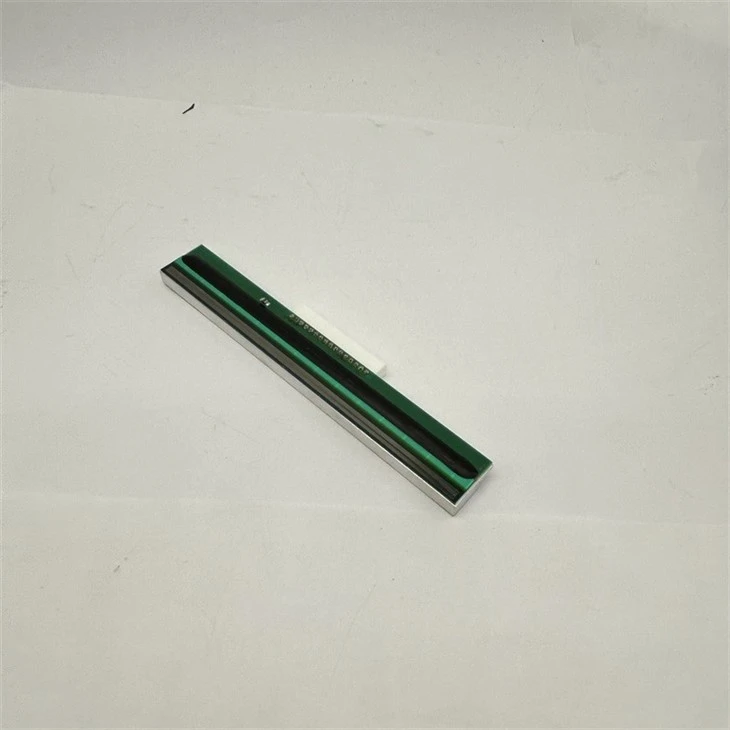

- Clean the Printhead Regularly: Use a lint-free cloth and isopropyl alcohol to clean the printhead regularly. This will help remove any dust, debris, or residue that may accumulate on the printhead.
- Use High-Quality Ribbon and Media: Using high-quality ribbon and media will help reduce the wear and tear on the printhead.
- Avoid Overheating the Printhead: Make sure the printer is properly ventilated and avoid using the printer for extended periods of time without giving it a break.
- Follow the Manufacturer's Instructions: Refer to the printer's user manual for specific instructions on how to maintain the printhead.
Conclusion
Upgrading the TSC printhead after buying it is a straightforward process that can significantly improve the performance and longevity of your printing equipment. By following the steps outlined in this blog post, you can upgrade your printhead with confidence and ensure optimal print quality. If you have any questions or need further assistance, don't hesitate to contact us. We're here to help you with all your TSC printhead needs. Whether you're looking to purchase a new printhead or need advice on upgrading your existing one, we have the expertise and experience to provide you with the best solutions. Contact us today to discuss your requirements and start upgrading your TSC printhead.
References
- TSC Printer User Manuals
- TSC Technical Support Documentation